The business rules are used to automatically create and validate orders out of attachments. To set the business rules, perform the following steps:
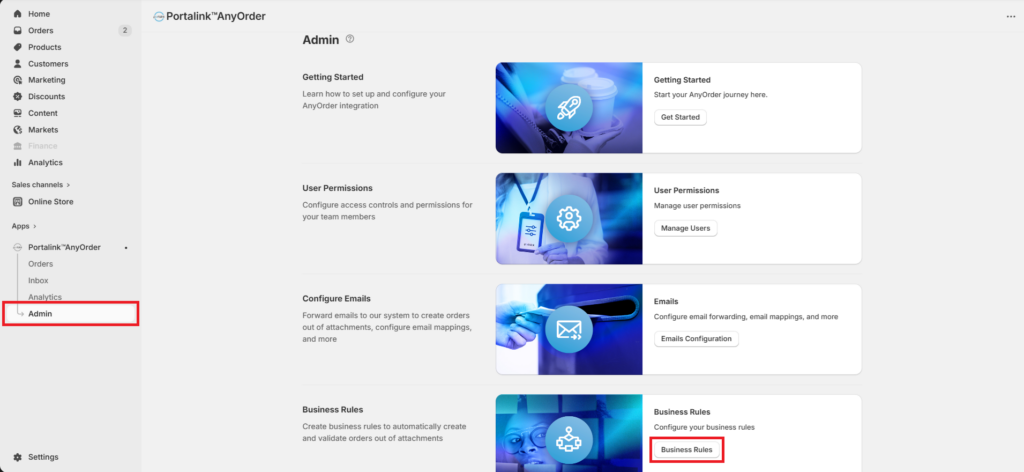
- Navigate to the Admin page, and then click on Business Rules.
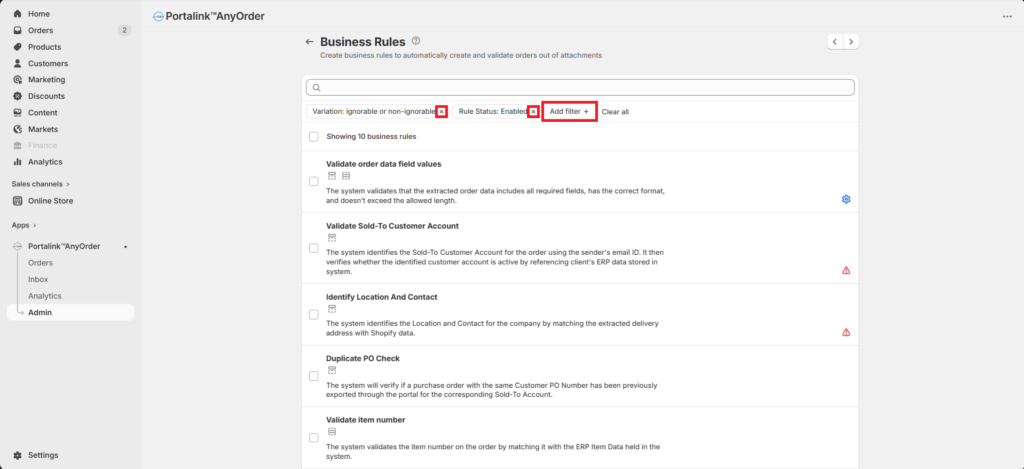
- You can put filters on the page by clicking the Add filter + button. To remove a filter, just click on the x button next to it.
The variations for business rules are:
Enabled – the business rule will be automatically applied to all orders processed by the App.
Disabled – the business rule is not active and will not be automatically applied to the order. The disabled business rule will be flagged by an eye icon with a line through it. 
Ignorable – although a variance is flagged in an order, you can still export the order to draft.
Non-ignorable – you cannot export the order to draft until the variance is resolved. Non-ignorable business rules will be flagged with a red warning icon. 
The 10 business rules
As a user with Admin access, you can configure business rules to automatically validate orders processed by the Portalink™AnyOrder App. Each business rule can be enabled or disabled and can be set to Ignorable or Non-ignorable.
- Validate order data field values
- The system validates that the extracted order data includes all required fields, has the correct format, and doesn’t exceed the allowed length. In Advanced Config, you have the option to set each field as Mandatory or Optional, set the Minimum and Maximum values and lengths of each field.
- Validate Sold-To Customer Account
- The system identifies the Sold-To Customer Account for the order using the sender’s email ID. It then verifies whether the identified customer account is active by referencing client’s ERP data stored in system.
- Identify Location And Contact
- The system identifies the Location and Contact for the company by matching the extracted delivery address with Shopify data.
- Duplicate PO Check
- The system will verify if a purchase order with the same Customer PO Number has been previously exported through the portal for the corresponding Sold-To Account.
- Validate item number – Recommended
- The system validates the item number on the order by matching it with the ERP Item Data held in the system.
- Inactive Material Check – Recommended
- The system verifies if the status of the item is marked as active in the ERP Item Data held in the system.
- Unit Price Mismatch Check – Recommended
- The system validates and highlights if the order price does not match the ERP price.
- Line Total Calculation Check
- The system verifies the order item-line total with calculated total based on ordered quantity and ERP price.
- Quantity Rules
- This rule ensures that the product quantity meets the required minimum, does not exceed the maximum, and increases in specific increments (e.g., 5, 10).
- Identify Made to Order lines
- System identifies and highlight Made-to-order lines in the Order based on the keywords.
Changing business rules variation
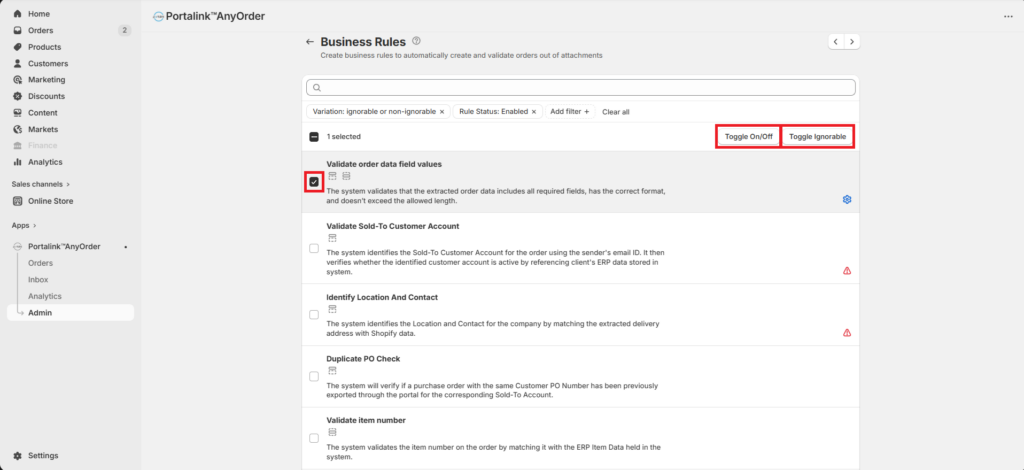
You can change the variation for any of the 10 business rules. To change the variation of the rule/s, perform the following:
- Tick the checkbox next to the business rule.
- Click Toggle Ignorable or Toggle On/Off.
Advanced configuration
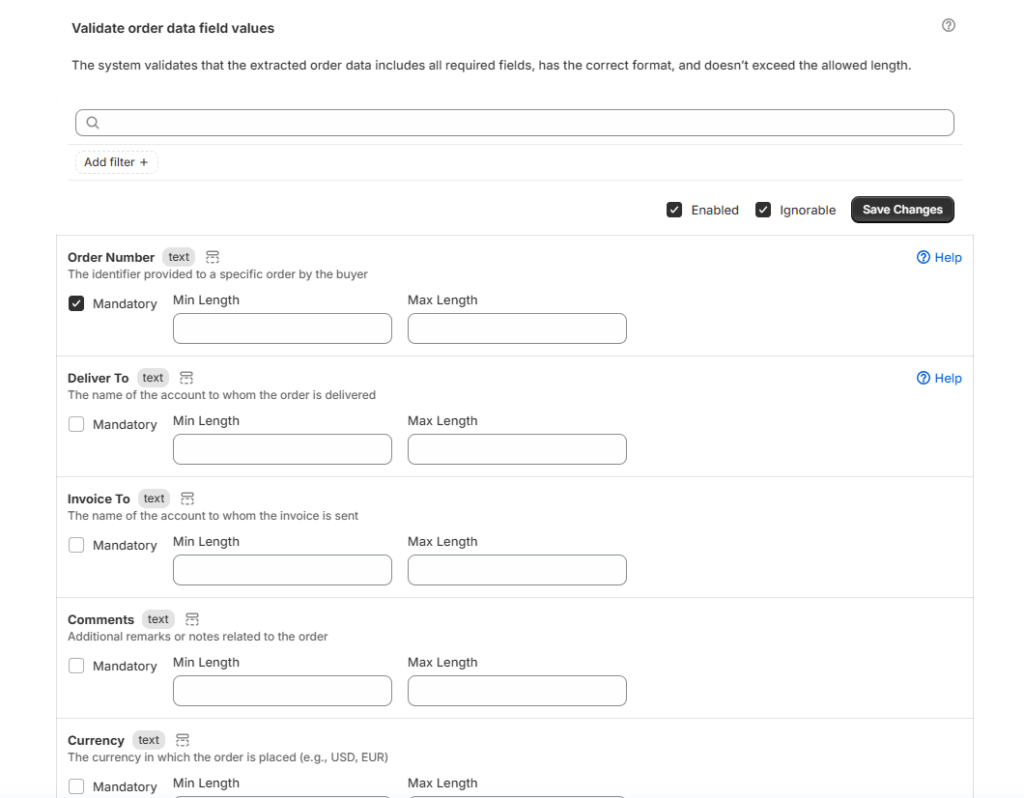
For the Validate Order Data field values business rule, there is an option to set advanced configuration. The system validates that the extracted Order Data includes all required fields, has the correct format, and doesn’t exceed the allowed length.
To modify the configuration, perform the following:
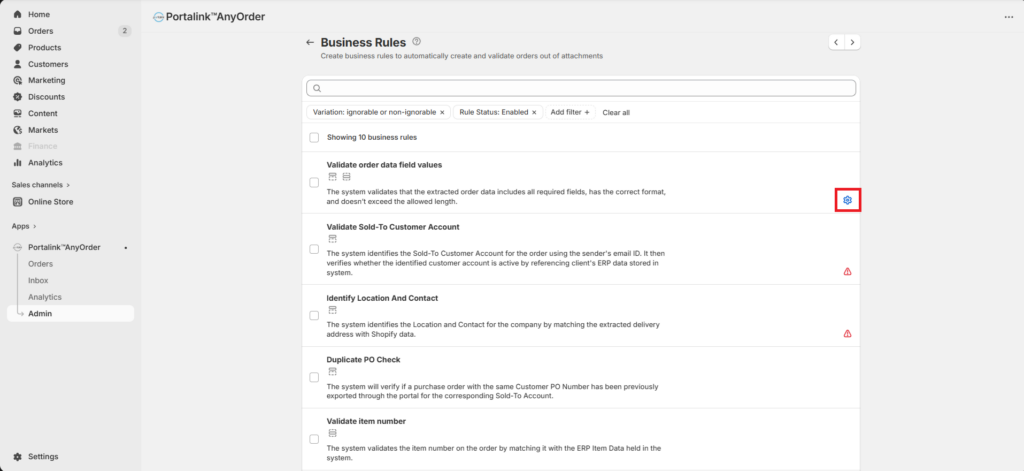
- Navigate to the Business Rules page, and then click on the gear icon under Validate order data field values.
Here, you can set the minimum and maximum lengths and values for the different data fields. You can also tick the Mandatory, Enabled and Ignorable boxes.
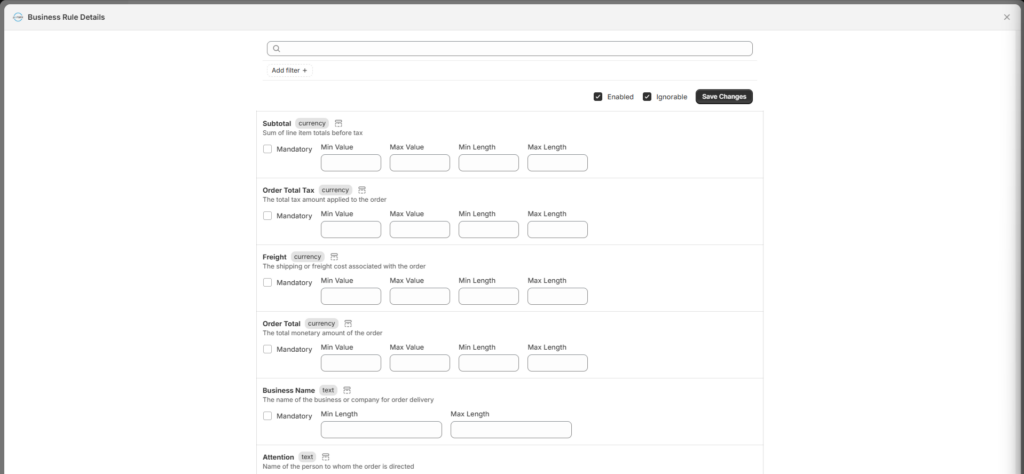
The data fields which can be modified are as follows:
- Order Number – The identifier provided to a specific order by the buyer
- Deliver To – The name of the account to whom the order is delivered
- Invoice To – The name of the account to whom the invoice is sent
- Comments – Additional remarks or notes related to the order
- Currency – The currency in which the order is placed (e.g., USD, EUR)
- Order Date – The date when the order was placed
- Subtotal – Sum of line item totals before tax
- Order Total Tax – The total tax amount applied to the order
- Freight – The shipping or freight cost associated with the order
- Order Total – The total monetary amount of the order
- Business Name – The name of the business or company for order delivery
- Attention – Name of the person to whom the order is directed
- Line 3 – Additional address line for dropship address
- Street – Name of the Street for dropship address
- Zip Code – Zip Code for dropship address
- City – Name of the City for dropship address
- State – Name of the State for dropship address
- Country – Name of the Country for dropship address
- Delivery Instructions – Special instructions for the delivery of the order
- Supplier – The supplier or vendor from whom the order is placed
- Sold to Account Code – The code or ID of the customer/account that placed the order
- Code – A specific product or service code for the line item
- Barcode – The barcode or EAN of the product
- Description – A brief description of the product or service
- Quantity – The quantity of the product or service ordered
- Unit of Measure – Unit of Measure, indicating the unit in which the product is measured (e.g., pieces, kilograms, etc.)
- Price (Exc) – The price of the product or service for a single unit
- Total (Exc) – The total cost of the line item (quantity multiplied by the sales price)
- Customer Code – The code or ID of the customer associated with the line item
- Product Note – Additional notes or comments related to the product
- Tax Value – The tax amount applied to the line item
- Delivery Date – The date when the line item is expected to be delivered
- Line Item Number – A unique identifier for each individual item in the order
- Internal ID Product Code – An internal code or ID used to identify the product within a company’s system
- isProductCodeMapping – Indicates if the product code has been mapped or not
Revalidating orders
When there are changes made to the business rules, you will receive a prompt at the bottom of the page when you’re viewing an order.
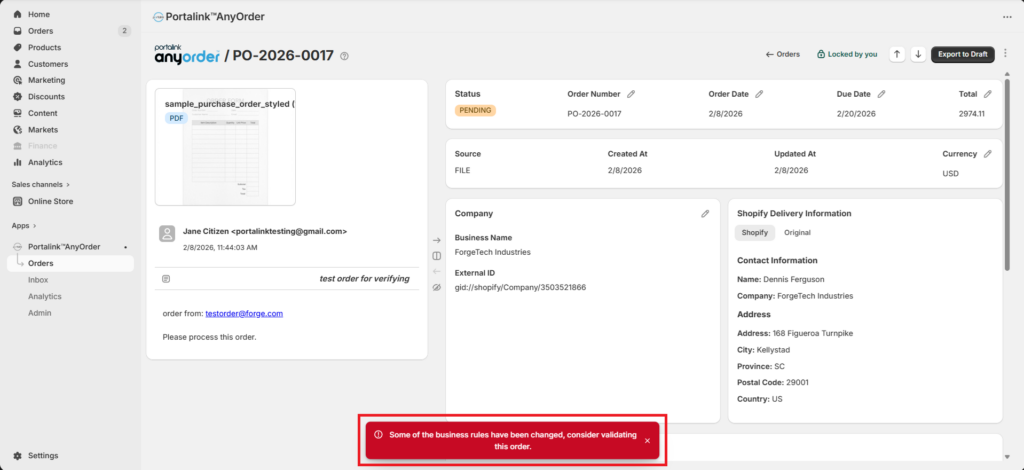
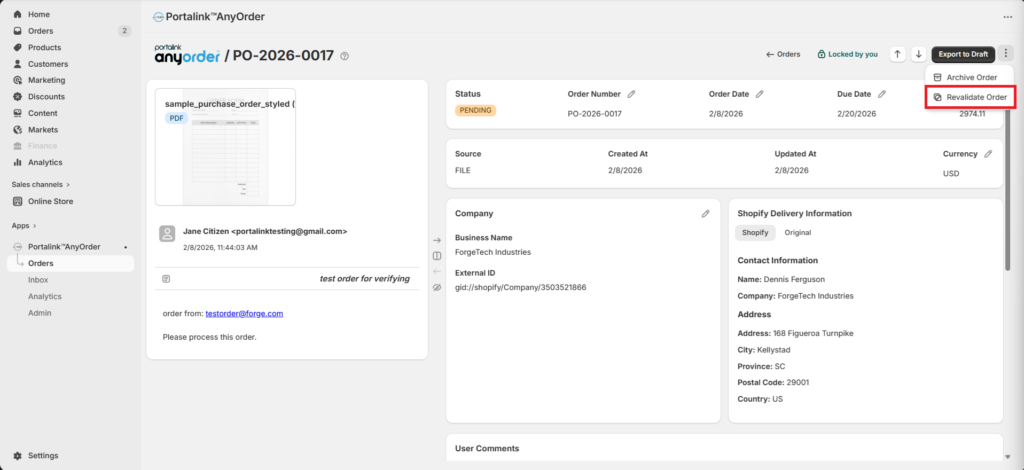
If you would like to apply these changes to the order you’re currently viewing, you can use the Revalidate Order option. To use this option, perform the following:
- Click the 3 dots.
- Click Revalidate Order.