The Inbox in the Portalink™AnyOrder App is where all Messages, including Orders, can be viewed. In this page are 3 main tabs:
- Linking Required – Messages that may include a first-time order from a customer that needs to be linked and mapped
- Mappings Verification – Messages that are awaiting verification
- Pending – Messages that have been linked and awaiting mapping
- All Messages – Excludes those that have already been processed and/or archived
- Processing – Orders that are being processed and validated
- Archived
To change the number of rows displayed in the page, choose from the dropdown list. To navigate through the pages, use the arrow buttons.
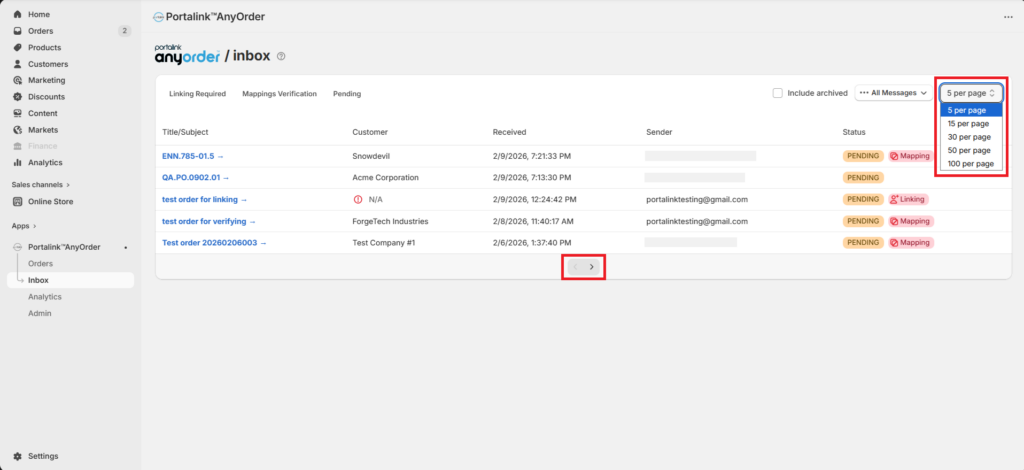
The different order statuses you will see in the Inbox page are as follows:
Archived
- the order data attached to the message was successfully extracted
- the user manually set the status to Archived
Pending
- there is no existing mapping for the order template attached to the message
- the order template has not been linked to an email identifier and company account
Linking an email address/domain to a company account:
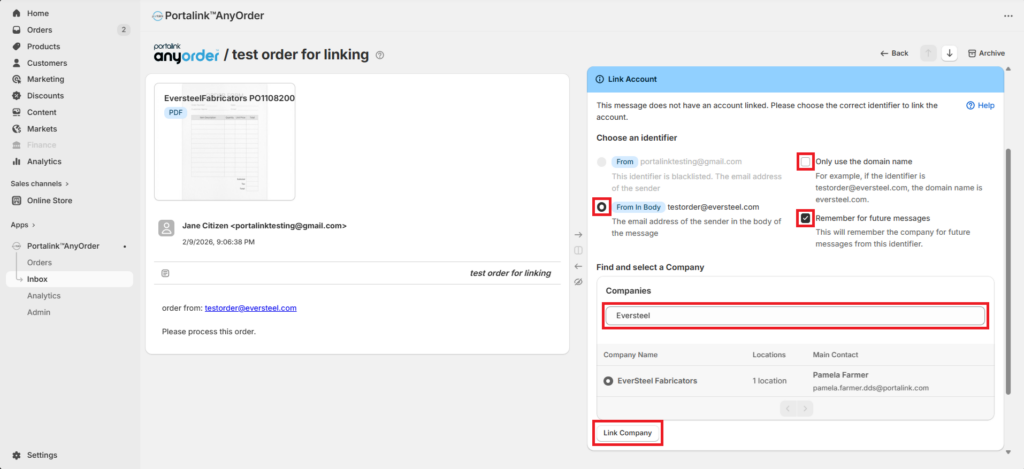
When an order is initially sent through the Inbox page, you must choose the correct identifier, and link it to the correct company account. To link an email address or domain to a company account, perform the following:
- Open the order in the Inbox page.
- Under the Link Account section, choose the correct email address.
- Tick the box next to Only use the domain name and/or Remember for future messages.
- Select the correct company to link the identifier.
- Click on Link Company.
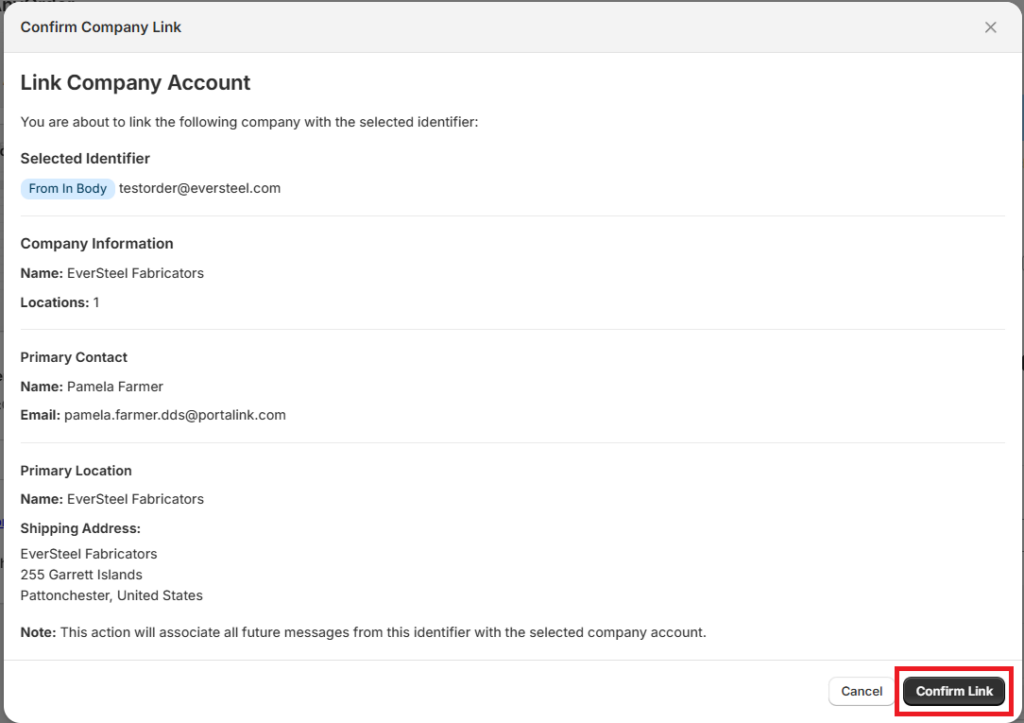
- On the Confirm Company Link prompt, click Confirm Link.
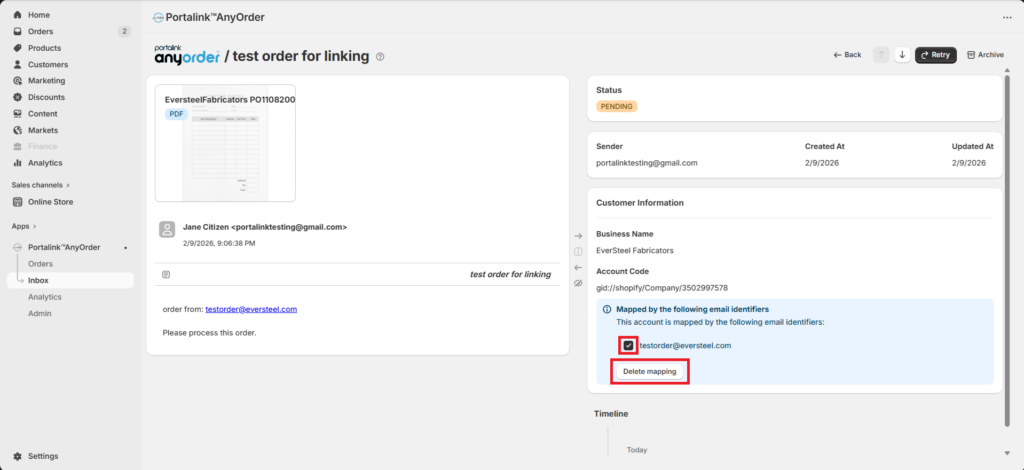
To delete an existing mapping through the Inbox page, perform the following:
- Tick the box next to the email address or domain.
- Click Delete mapping.
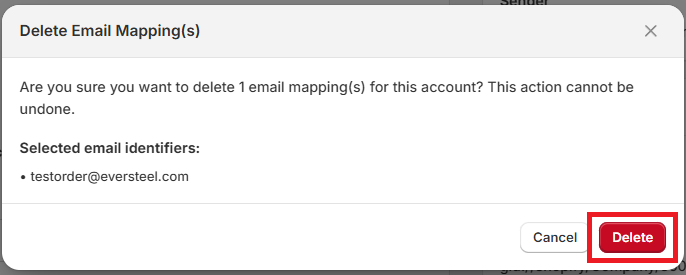
- Click Delete on the Delete Email Mapping(s) prompt.
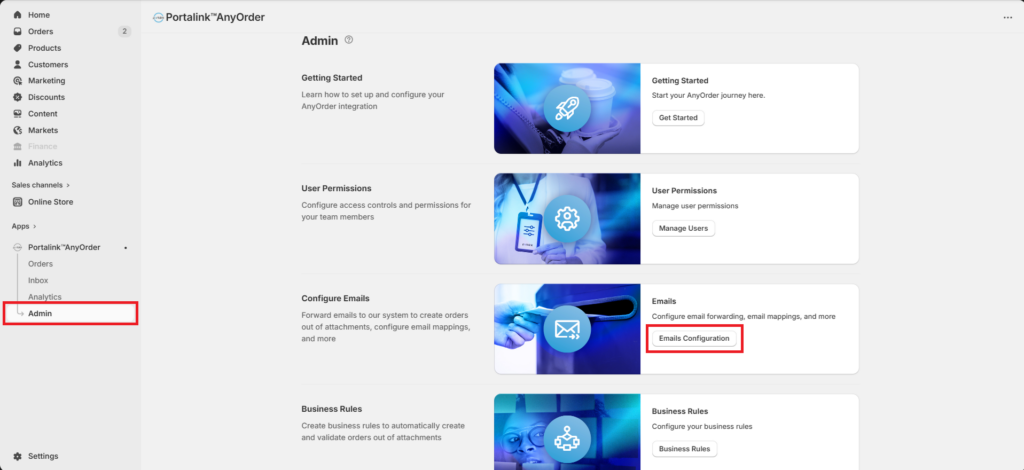
To see the list of existing linked accounts or mappings, perform the following:
- Click Admin.
- Click Emails Configuration.
The user will be able to see the list of existing mappings.
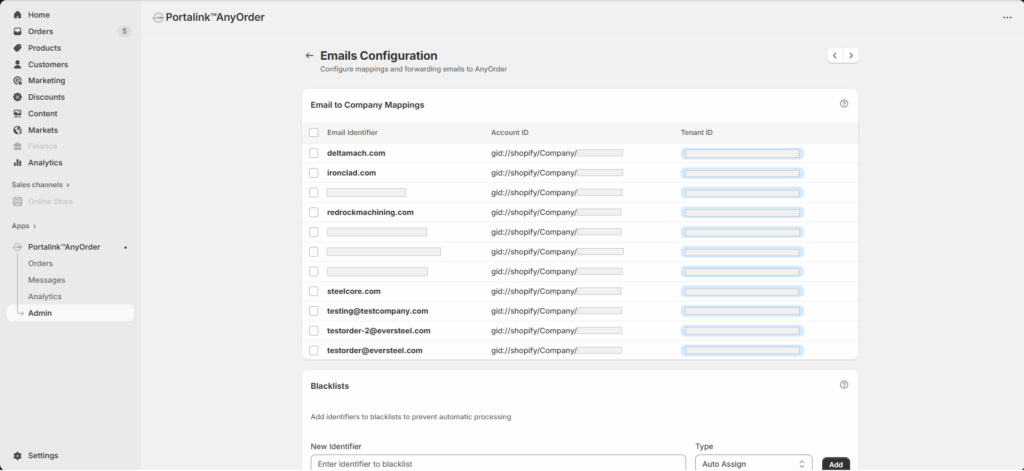
- To delete an existing mapping through the Emails Configuration page, tick the box next to the email address.
- Click Delete.
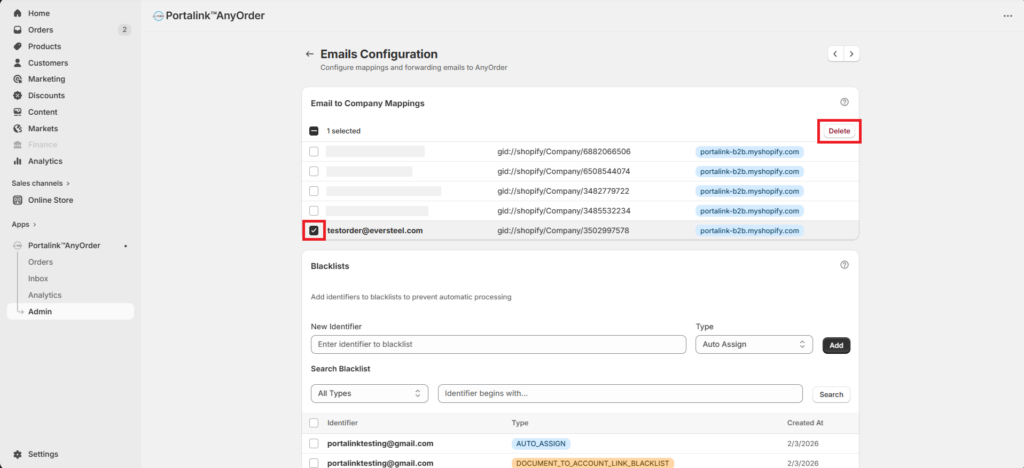
Any future emails received in the Portalink™AnyOrder app that previously matched that address or domain will no longer be automatically linked, and the system will prompt users to manually select the correct email address.
Manually archiving orders
To manually archive orders, perform the following steps:
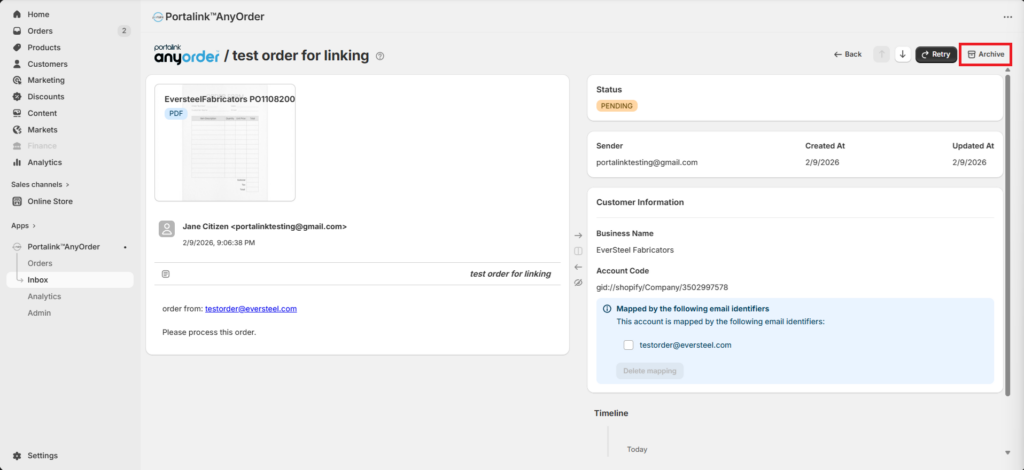
- Open the Pending order.
- Click the Archive button, and confirm the action. The order status will automatically change from Pending to Archived.