The Portalink™AnyOrder App mapping tool allows users to create a mapping for companies for future order attachments.
When an order is initially sent to the portal, the user will be prompted to link the order to the correct identifier and company. If it has an order attachment that has not been used in previous orders, the user will be prompted to request a mapping. For more information about account linking, please refer to the Inbox Page documentation.
The user can request a mapping and verify the extracted order data through either the Messages Page or the Orders Page.
Requesting a mapping & verifying order data in the Inbox Page:
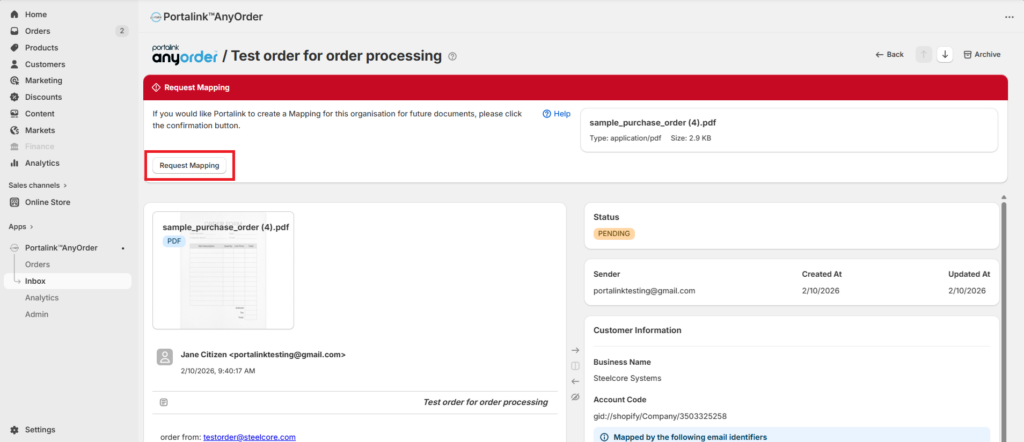
After an order has been linked to an account, the user can request the mapping for the order attachment.
- Click the Request Mapping button, and the banner will turn from red to green.
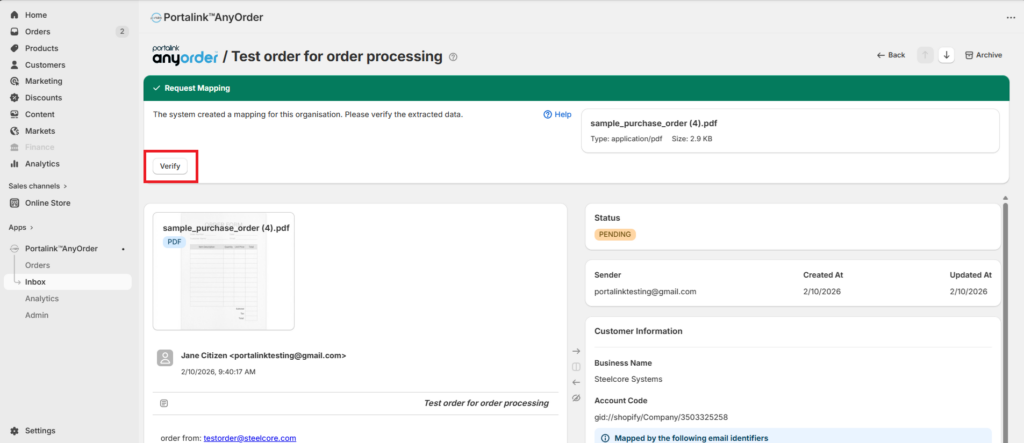
- Click the Verify button, and the Mapping Validation prompt will appear.
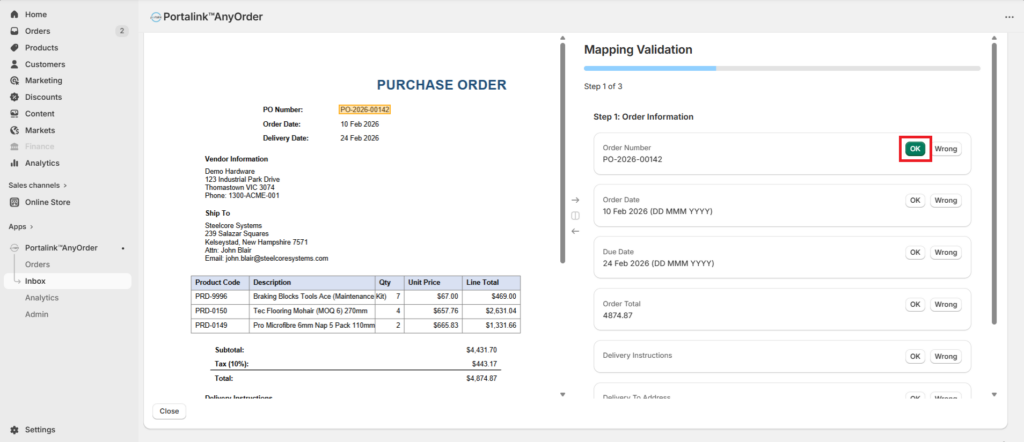
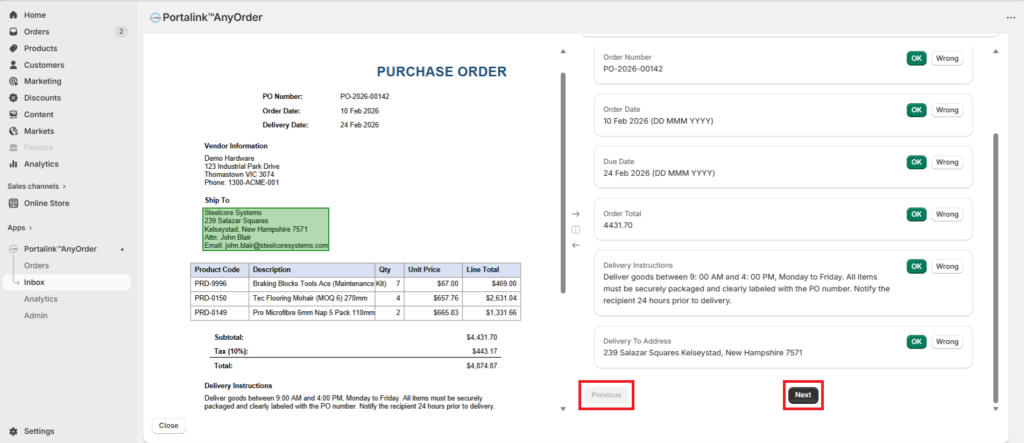
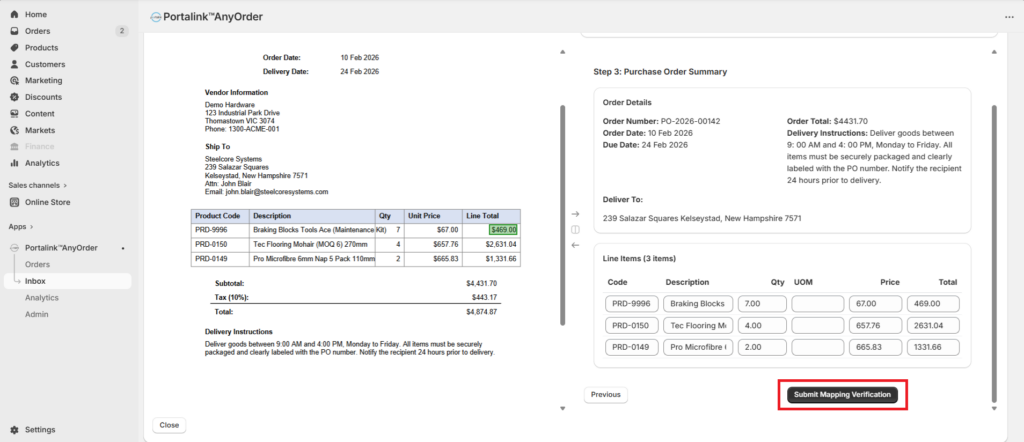
In the Mapping Validation, there are 3 steps wherein the user can verify if the extracted order data is correct: Order Information, Line Items Validation, and Purchase Order Summary. The user can also edit any inaccurate information.
- Click on OK if the data is correct.
- If the data is incorrect, click on Wrong, and then click on Fix.
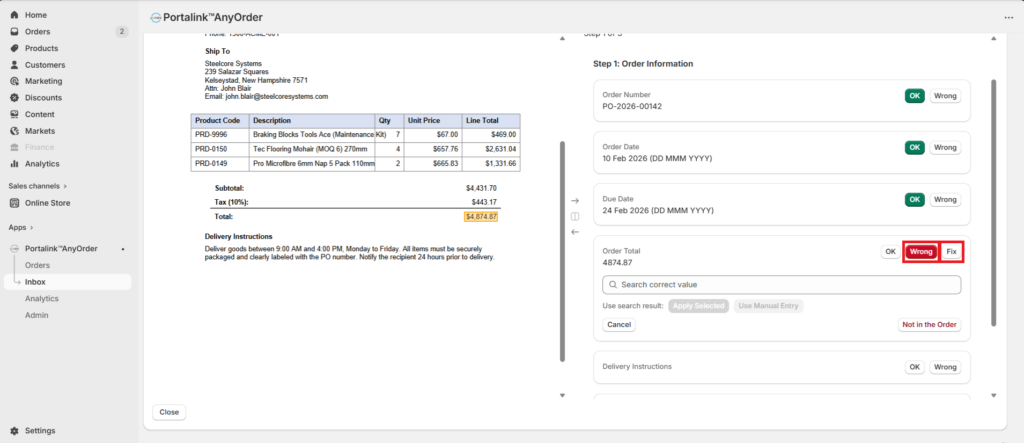
- To edit an incorrect order data, the user can either select from the options in the list and click on Apply Selected, or the user can manually input the data and click on Use Manual Entry.
- After the items have been verified, the user can proceed to the next step by clicking Next.
- The user can navigate through the steps by clicking the Next or Previous buttons.
- Once all the extracted order data have been verified, the user can click the Submit Mapping Verification button in Step 3: Purchase Order Summary.
- The user will see the “Mapping verified successfully” message. Close the Mapping Validation prompt.
- Click the Retry button
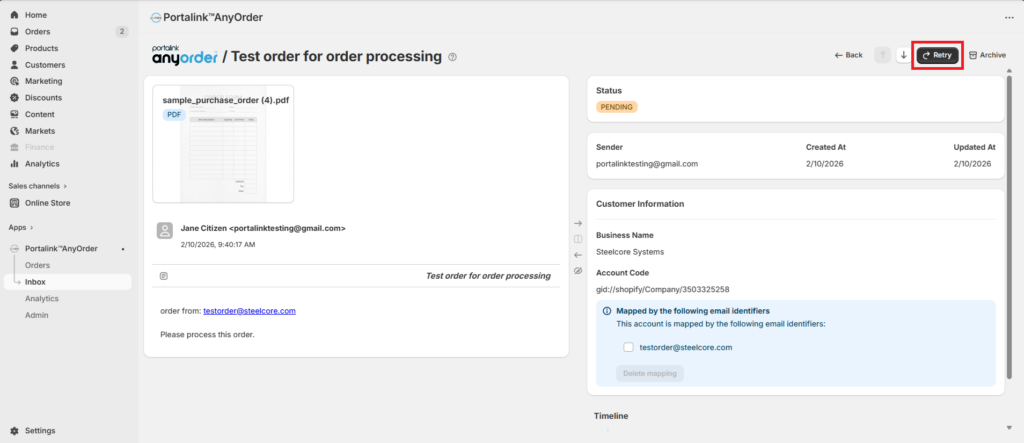
After refreshing the page, the order status will change from Pending to Archived. The order can now be viewed in the Orders Page.


