When the Portalink™AnyOrder App is installed for the first time, the administrator will need to go through several steps to grant access to existing users to the App in both the Users and permissions page within the Shopify admin and in the Admin page of the Portalink™AnyOrder App.
Granting access to the Portalink™AnyOrder app via Users and permissions within Shopify admin:
- Click on Settings.
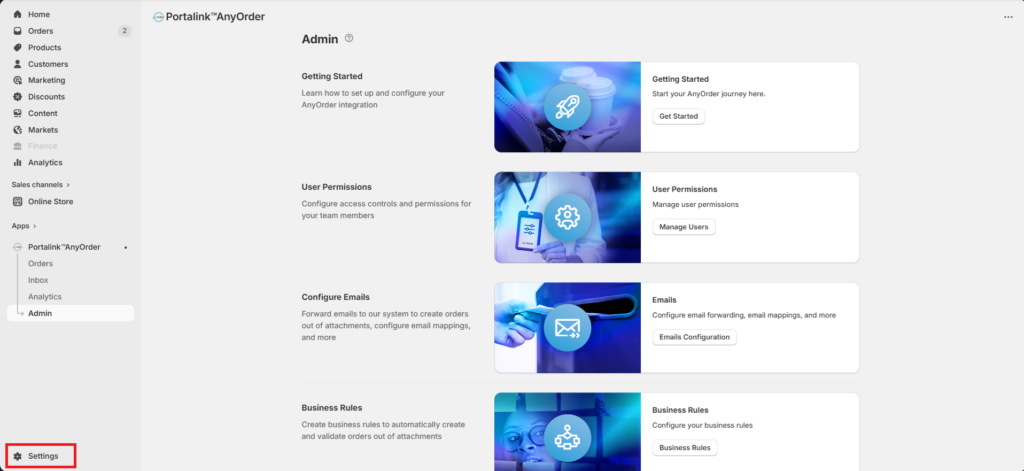
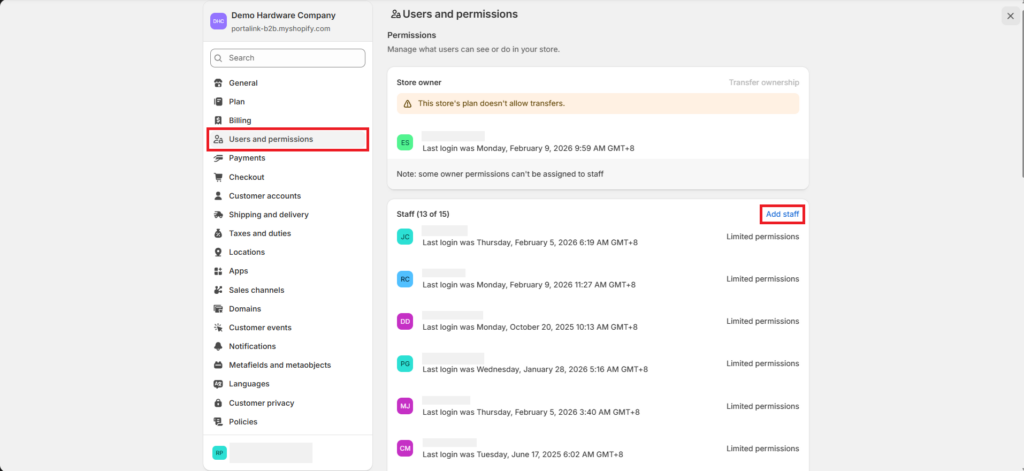
- Click on Users and permissions from the side panel. You will see the existing users and their corresponding permissions.
- Click Add staff.
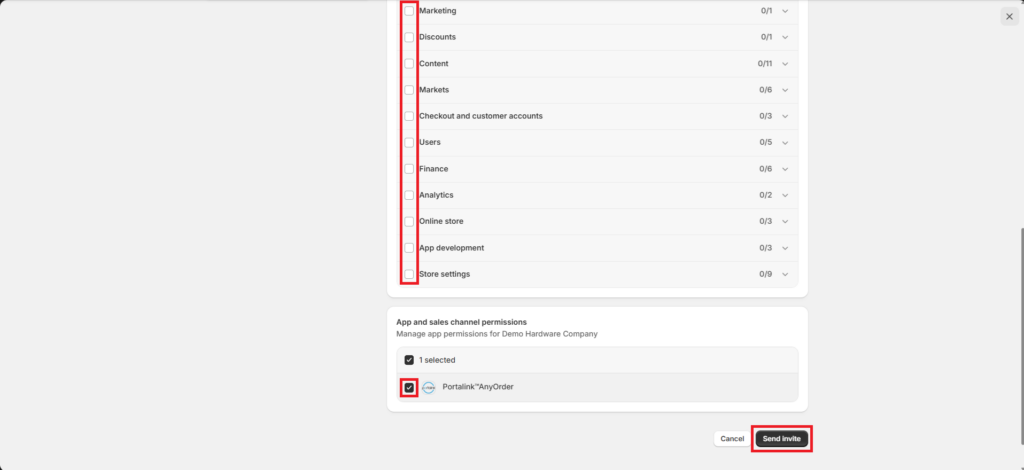
- Enter the details of the new or existing user, and assign Store, and App and sales permissions by ticking the box.
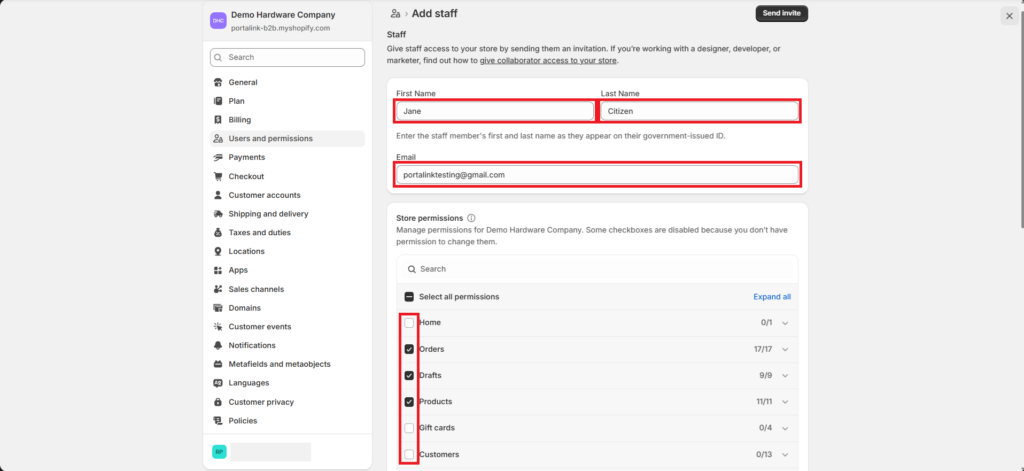
Note that a user must be granted store permissions, or they might have limited access to some of the features even with a role granted to them.
- Click on Send invite. The user will receive an invite through their email.
Granting user permissions:
Granting permissions allow users to access the app features. To assign user permissions, perform the following steps:
- Click Admin.
- Under User Permissions, click on Manage Users.
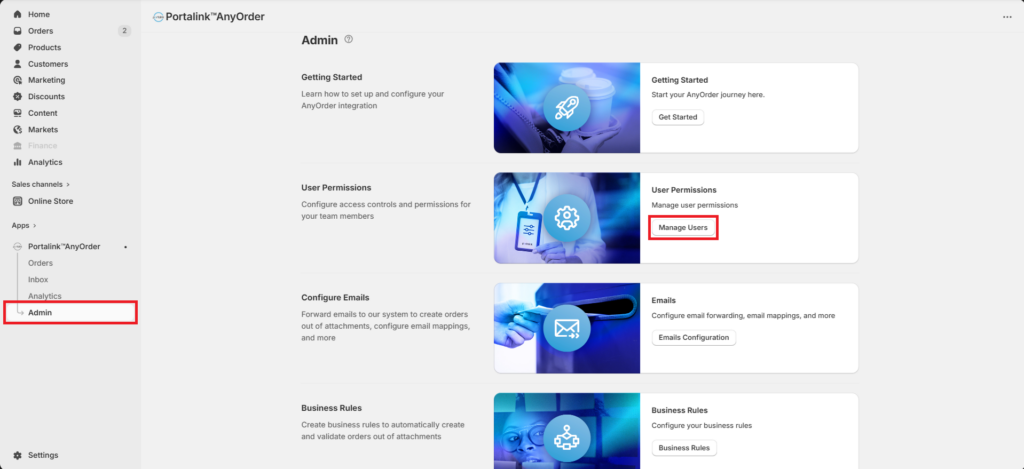
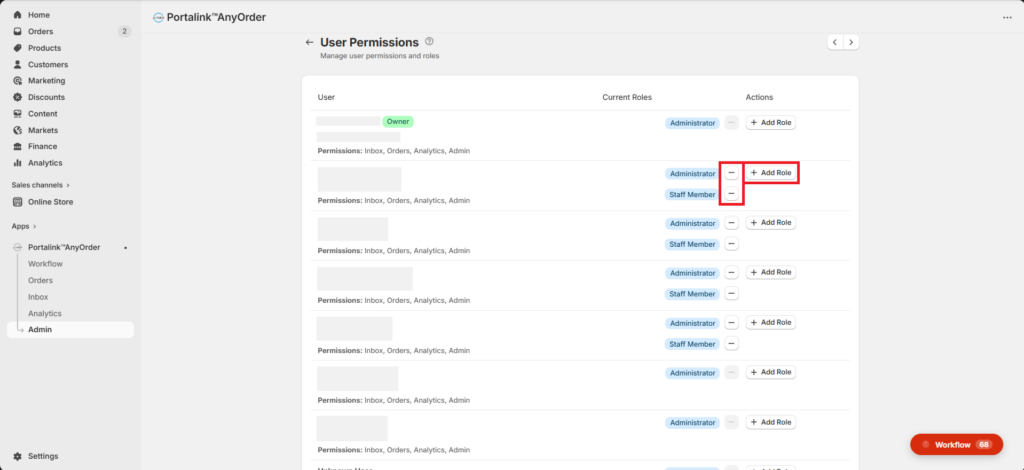
- Look for the user, and add roles by clicking the + Add Role button.
By default, the new user is granted the “Staff Member” role. As a Staff Member, the user has permissions for “Inbox” and “Orders” only.
- If you would like to remove a user role, just click on the minus button next to it.
The level of access based on roles is as follows:
| Feature/User Role | Administrator | Staff Member | SI Partner |
| Inbox | Y | Y | N |
| Orders | Y | Y | N |
| Analytics | Y | N | Y |
| Admin | Y | N | Y |


