To view the user’s current plan details and usage, to see the available plans, and to make changes in the billing in Portalink™ AnyOrder, perform the following steps:
- Click on Admin.
- Click on Billing.
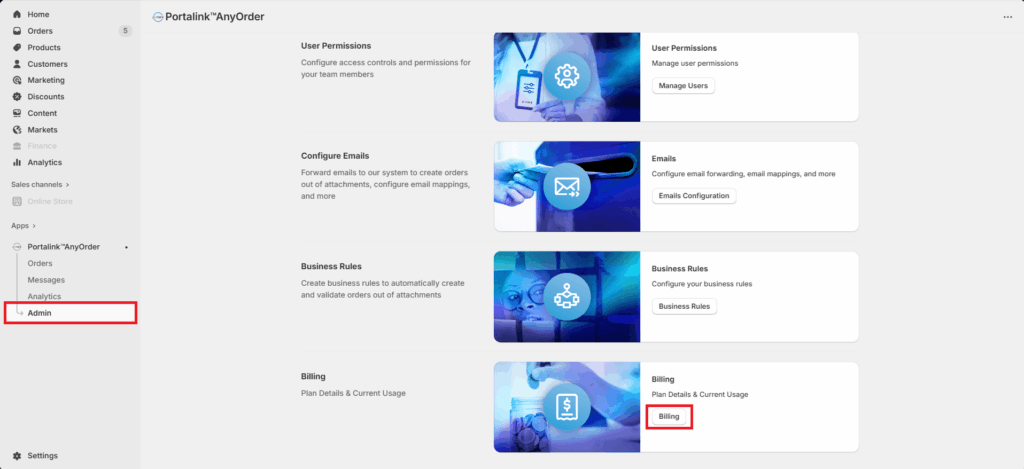
Note that the user must have an Admin role to view the Admin page in the app. Related article: User Roles & Permissions
The top box displays the user’s current plan along with the plan details like the monthly charge, charge per order, number of transactions, usage charges, as well as the information on the user’s billing cycle, any outstanding balance, and the dates for the next charge and the reset.
- Click on View all plans.
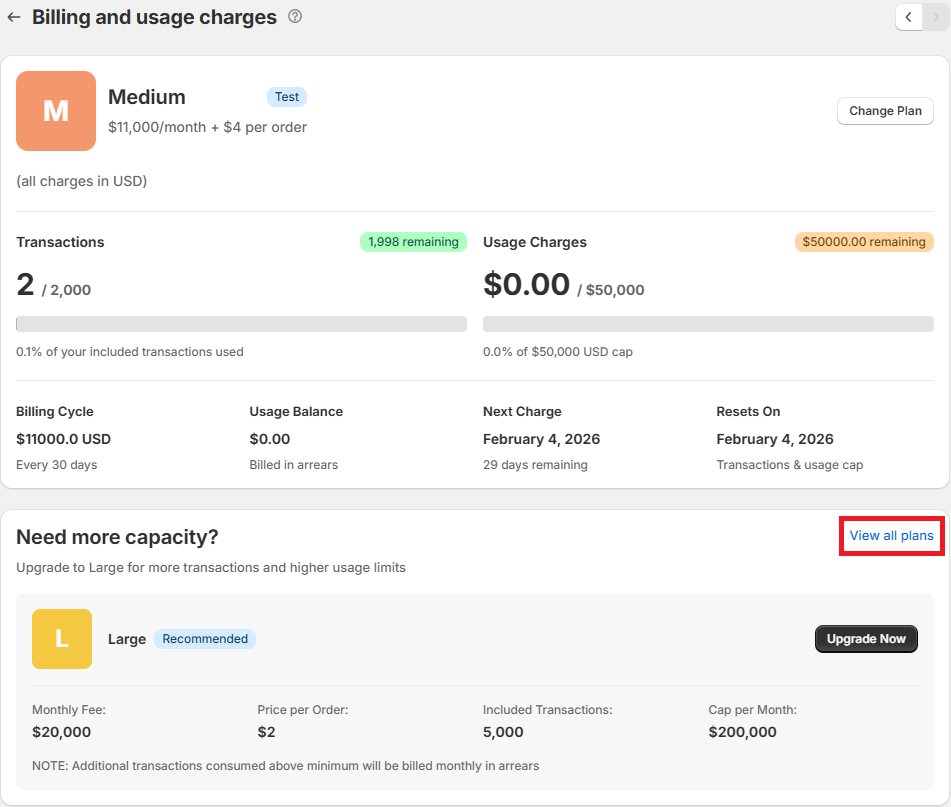
If the user exceeds the number of transactions during their current billing cycle, they will be charged per transaction according to the price on their plan, and will be billed monthly in arrears. Any unused transactions will expire after 30 days.
Upgrading/Downgrading Your Plan
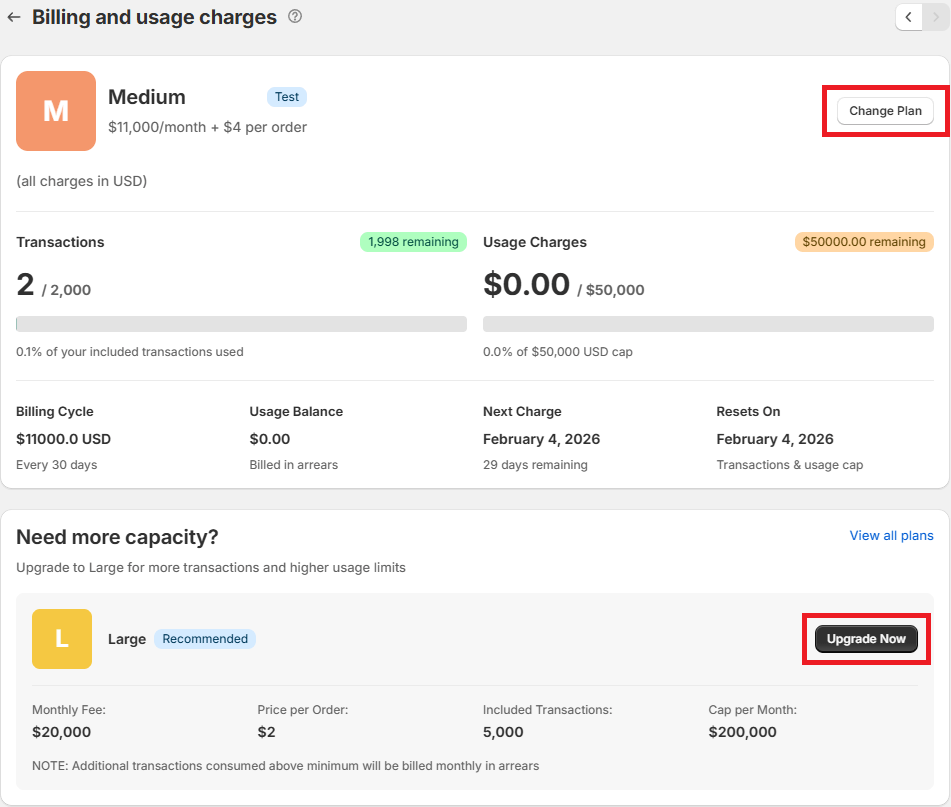
- From the Billing and usage charges page, click on Change Plan or Upgrade Now.
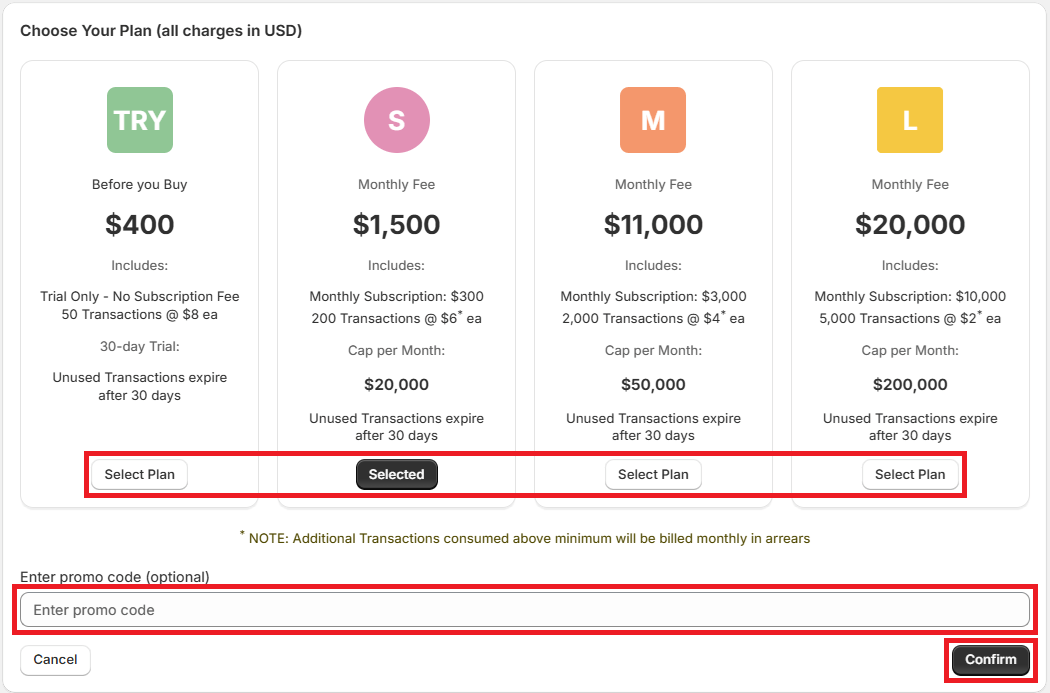
- Click on Select Plan under the preferred plan.
- Input a promo code in the Enter promo code textbox for special pricing.
- Click on Confirm.
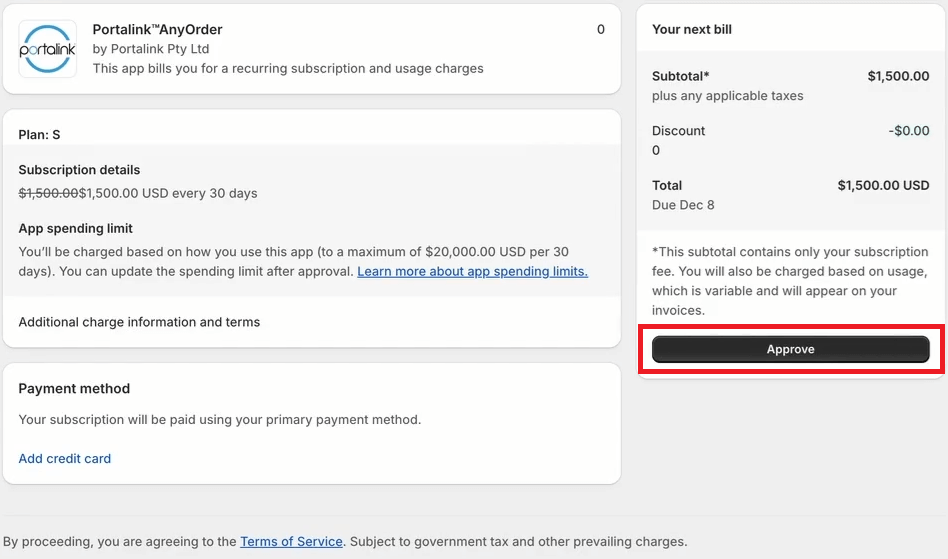
- Validate the changes, and choose the preferred payment method.
- Click Approve.
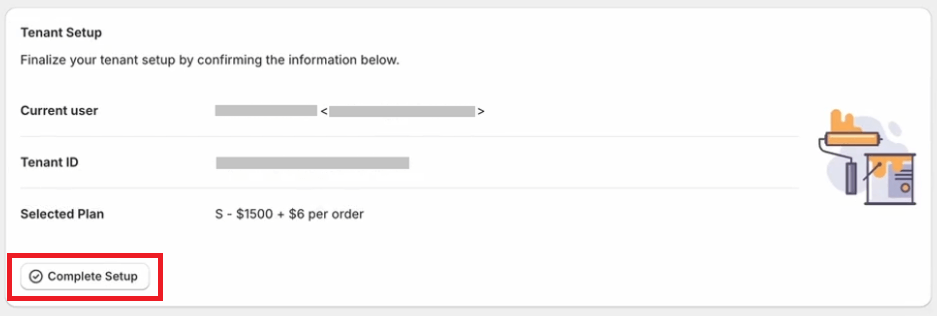
- Click Complete Setup.
- For guidance on the app setup, click on Getting Started

Once the user checks the Billing section in the Admin page, they will be able to see their new plan. The user can request to upgrade or downgrade their plan any time. All changes made to the plan will be reflected in the user’s account immediately, and any unused transactions from the previous plan will not be carried over to the new plan.


