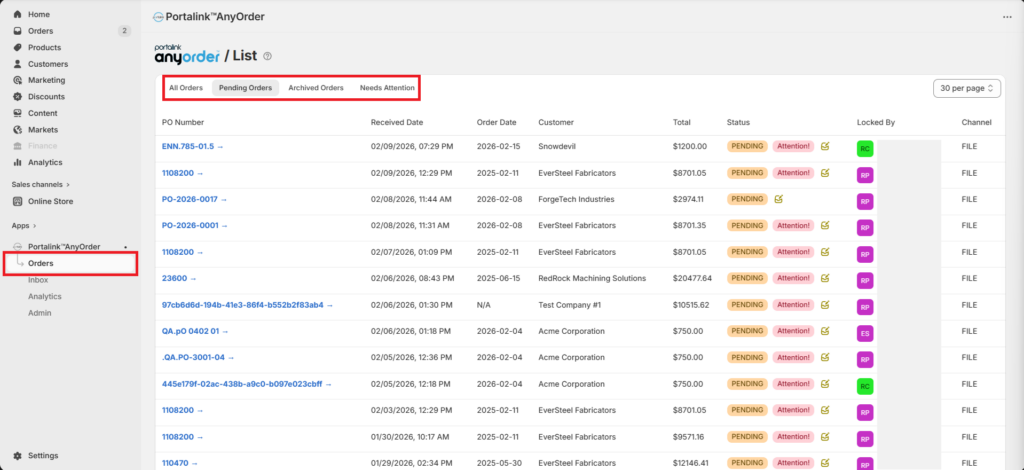
You can view the orders according to their status in the Orders Page. To navigate through the page, follow these steps:
- Click on Orders.
- Click on the tab of your preferred view. The default tab is Pending Orders.
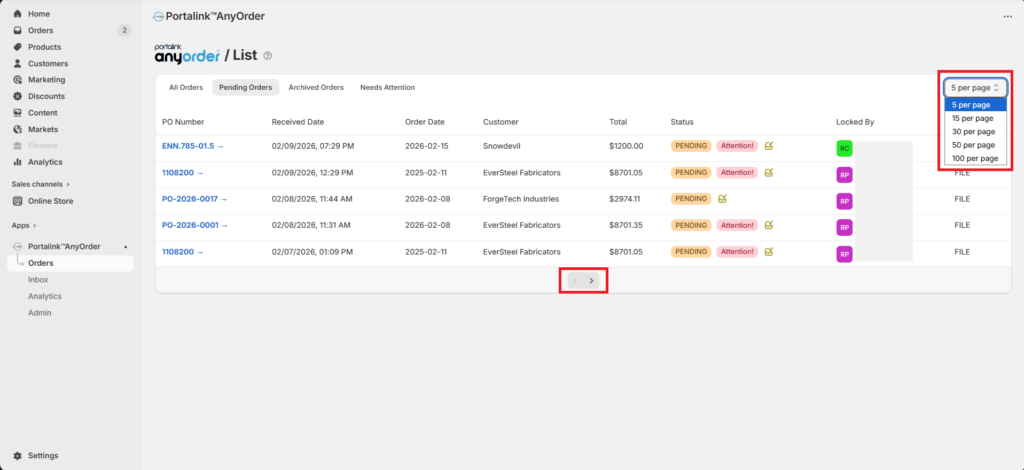
- You can change the number of rows displayed per page by choosing from the list.
- You can navigate through the Orders page by using the arrow buttons at the bottom.
The different order statuses you will see in the Orders page are as follows:
Archived
- the order has been exported to draft
- the user manually set the status to Archived
Pending
- the order has been extracted, but not yet exported to draft
Needs Attention
- the order has variances that need to be reviewed before it can be exported
Modifying the order:
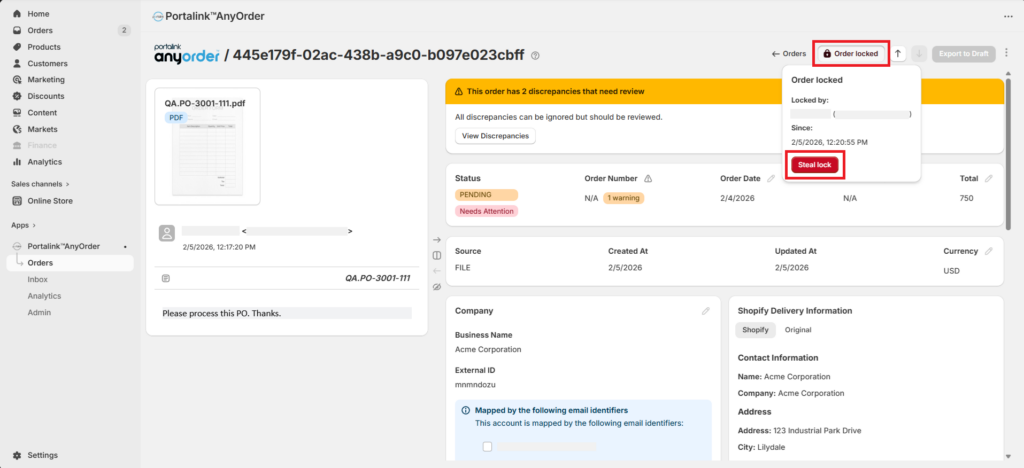
You will not be able to modify an order if it is currently viewed by another user. The pencil icon for the fields is greyed out, and you will not be able to export or archive the order.
If you would like to modify an order which is currently viewed by another user, perform the following steps:
- Click on Order locked.
- Click on Steal lock.
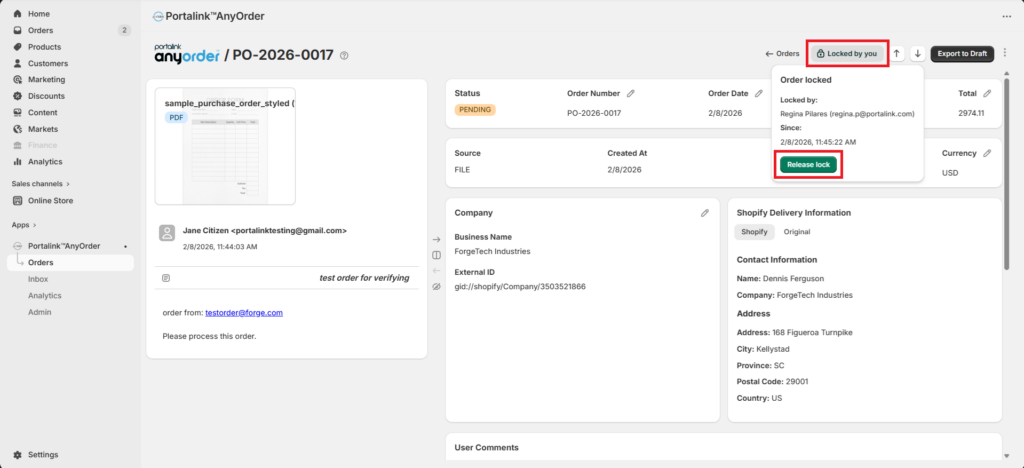
If you would like to allow other users to make changes to the order, perform the following steps:
- Click on Locked by you.
- Click on Release lock.
Exporting orders to draft:
To export the order to Draft orders, perform the following steps:
- Click on Export to Draft. Note that the button will need to be activated. If the order contains non-ignorable discrepancies, the Export to Draft button will not be available.
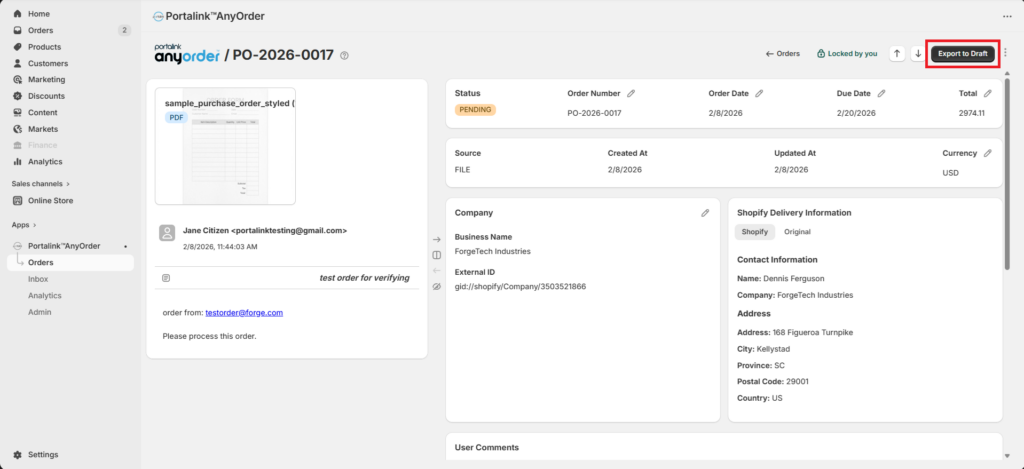
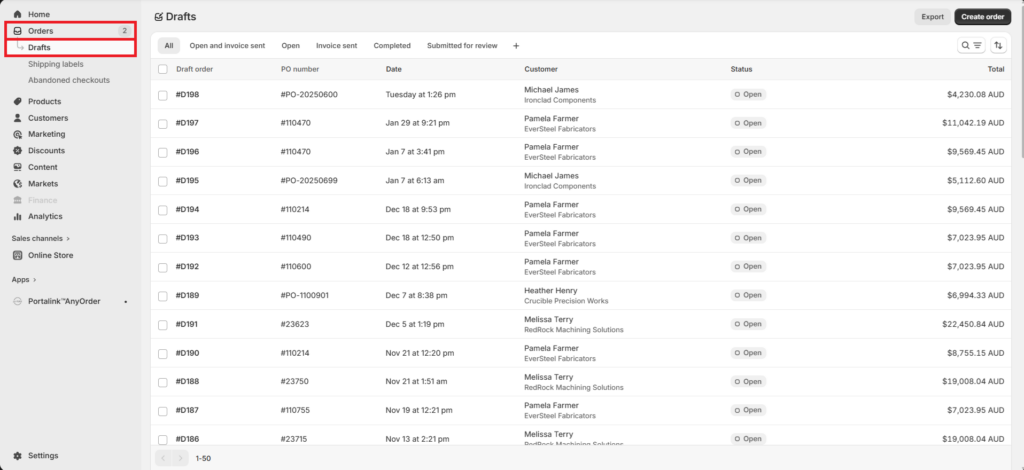
Once the order is exported to draft, it will be reflected in the Shopify Orders page under the Drafts tab.
- To view the exported order, click on Orders, and then Drafts.
Manually archiving orders:
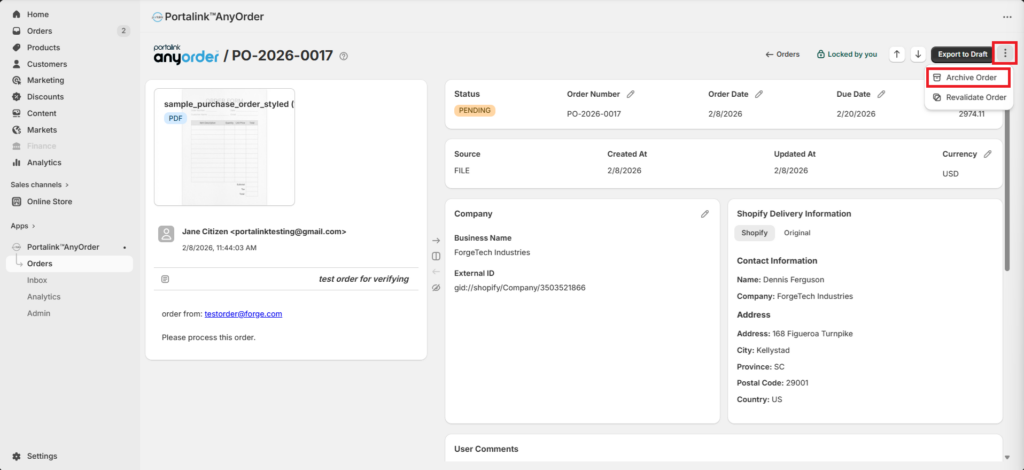
Just like in the Inbox page, you can archive the orders manually. To manually archive orders, perform the following steps:
- Click the 3 dots.
- Click the Archive Order button.
Related article: Order Processing


