Once you’ve installed the application, you’ll need to create the email forwarding rules in your email system. By creating the email forwarding rules, you are enabling the automated process of forwarding your customer’s orders into the Portalink™AnyOrder App
Finding the recipient email address:
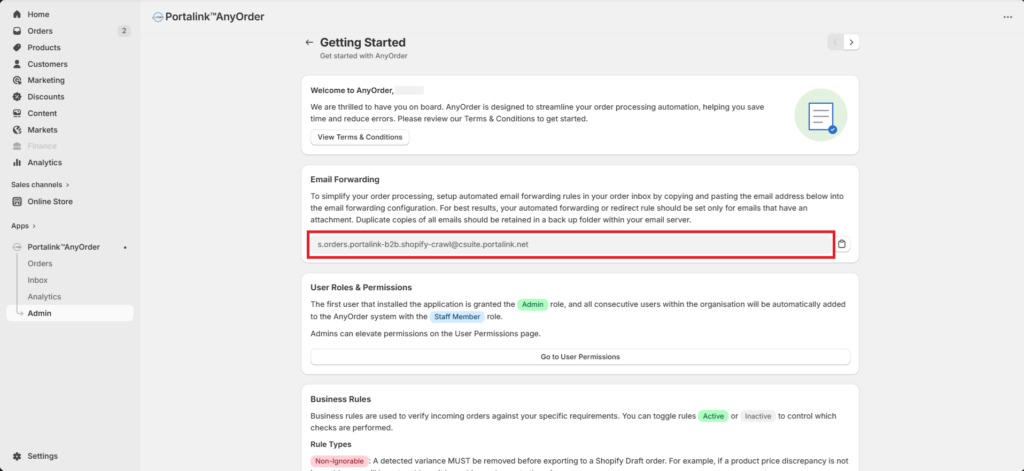
Before creating the forwarding rules, you’ll need to locate the unique recipient email address that was automatically generated when you installed the app. To find this address, perform the following:
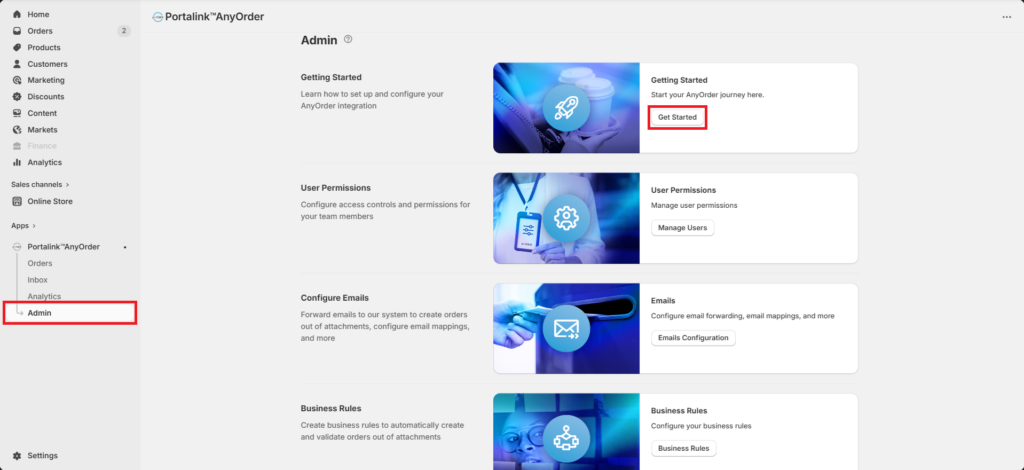
- Click on Admin.
- Click on Get Started.
You will see the email address where all customer orders should be forwarded.
Creating the forwarding rules for the recipient email address:
When creating the forwarding rules in your email system, you must configure them to send all customer order emails to this address.
For more information in setting up the email forwarding rules, you can conduct a Google search for your specific email provider, like Outlook or Gmail. You may also consult your email provider’s support team for further assistance.
Important! Before activating the email forwarding rules, please read the email blacklisting documentation.
Related article: Email Blacklisting Rules


