Apply the payment terms saved against a Shopify company location when Portalink creates a draft order. You can also include the location’s deposit percentage on Shopify Plus.
Quick route: Shopify company location → set payment terms → Portalink Admin → Business Rules → Apply payment terms on export → configure deposit → Export to Draft → verify in Shopify.
Before you start
You need Admin access to Portalink’s business rules, access to the Shopify company location settings, and an order linked to the correct company and location. Configure the terms in Shopify first; Portalink retrieves the selected location’s settings on export.
- Set the company location’s payment terms
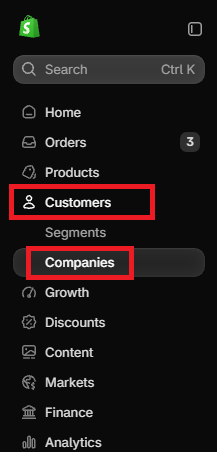
In Shopify admin, go to Customers → Companies. Open the company, then select the required location under Locations.
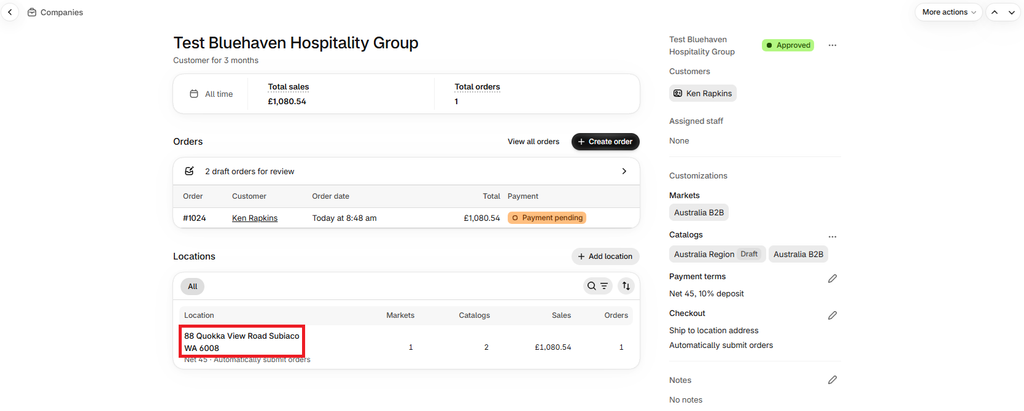
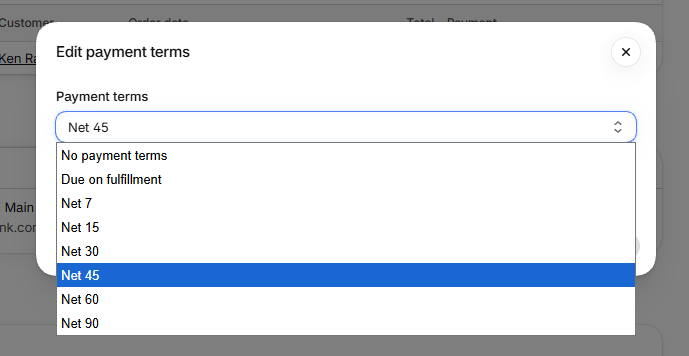
In Payment terms, select the edit icon and choose the agreed term, such as Within 45 days or Due on fulfillment.
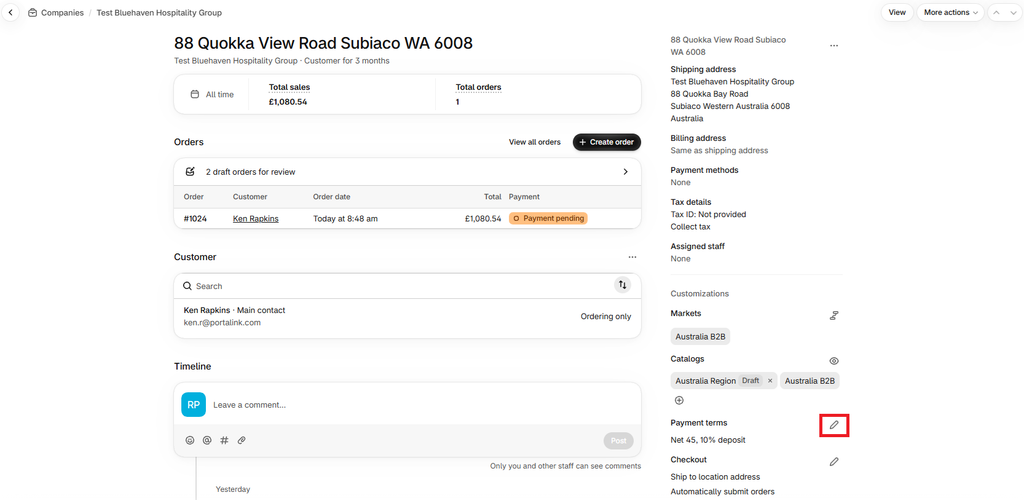
On Shopify Plus, you can also select Require deposit on orders created at checkout and enter a deposit percentage. Select Save.
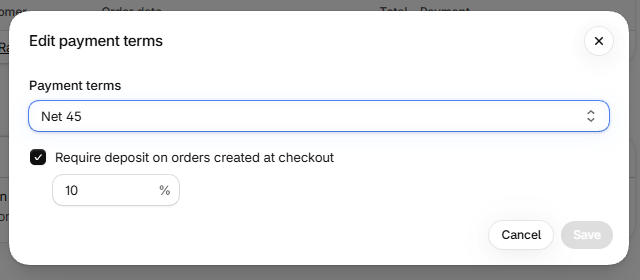
The payment term and deposit percentage belong to the company location. Check the correct location when a company has more than one.
- Enable the Portalink business rule
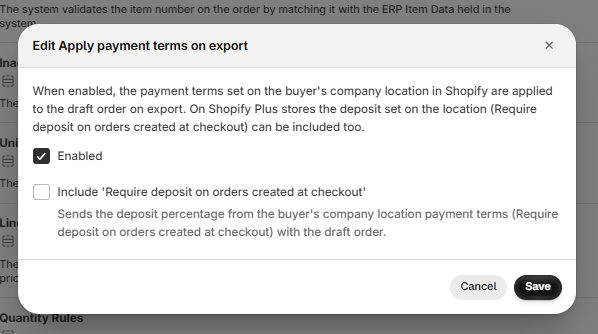
Open Portalink AnyOrder, go to Admin → Business Rules, and find Apply payment terms on export. Enable the rule. If it is disabled, select its checkbox and use Toggle On/Off to switch it on.
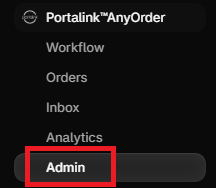
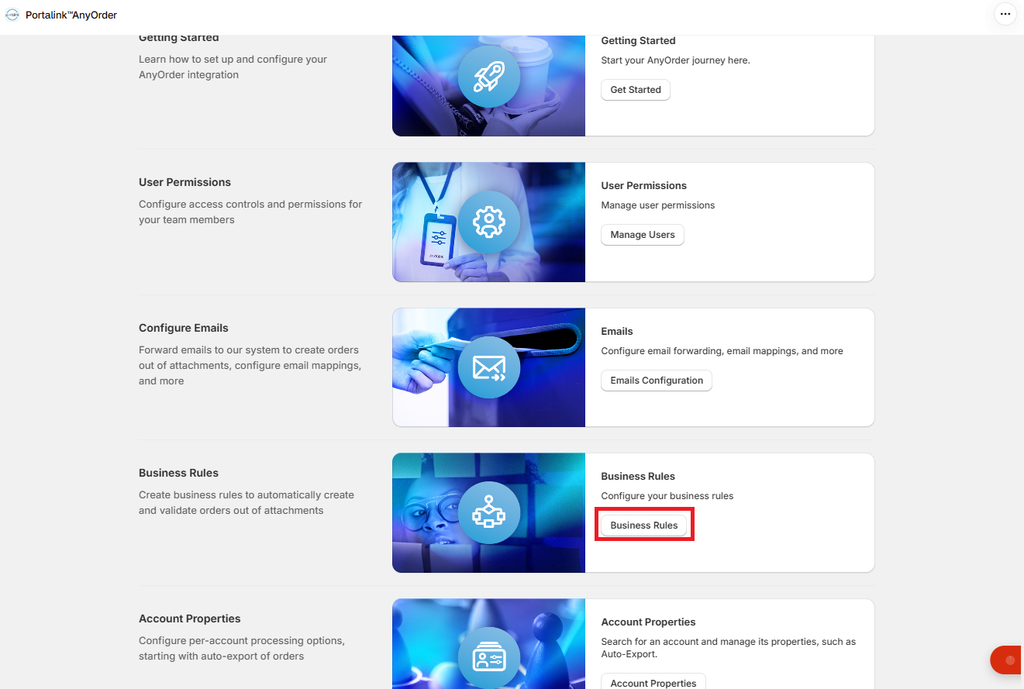
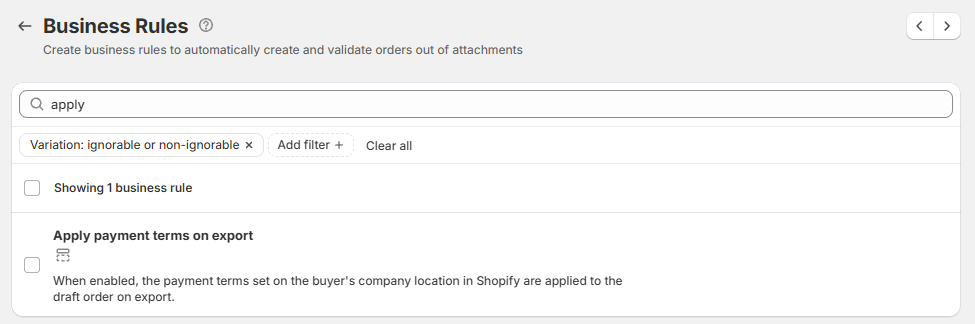
This is a global setting. When enabled, Portalink retrieves and applies each selected company location’s payment terms when creating the Shopify draft.
Choose whether to include the deposit
Open the configuration for Apply payment terms on export. Use Include ‘Require deposit on orders created at checkout’ to control whether the location’s deposit percentage is exported with its terms. Save the configuration.
Shopify Plus limitations
Deposit requirements are Shopify Plus only. Only Plus subscriptions can turn on the deposit option. On other plans, leave it Off and use payment terms without a deposit where supported.
| Required result | Payment terms rule | Deposit option |
| Payment terms only | On | Off |
| Terms + location deposit (Plus) | On | On |
| No terms sent by Portalink | Off | Not applied |
Shopify rejects the entire draft if a deposit is submitted on an unsupported plan, with “Deposits are unavailable on your Shopify Plan.” Portalink does not send deposits on those plans.
Enabling the deposit option uses the percentage configured in Shopify. It does not create a deposit percentage where none has been configured, and creating the draft does not collect payment automatically.
- Export and check the Shopify draft
Open the order in Portalink and check the selected company and location. Review discrepancies and complete the required order checks, then select Export to Draft. After export succeeds, select Open in Drafts.
In Shopify, review the draft’s payment details. Check that its payment term matches the selected company location and, if deposit inclusion is enabled on Plus, that the expected deposit percentage is present.
To request the deposit, use Shopify’s invoice or payment-link workflow. Exporting a deposit requirement is separate from collecting or recording payment.
Before you finish
- The correct company and location are selected.
- The location’s terms and any deposit are saved in Shopify.
- Apply payment terms on export is enabled.
- The deposit option matches your Shopify plan and intended result.
- The new Shopify draft shows the expected terms and deposit.
If terms or a deposit are missing
Terms missing: check that the rule is enabled, the correct company location is selected, and that location has saved payment terms. Verify the result on a newly exported draft.
Deposit missing: check that the store is on Shopify Plus, the location has a deposit percentage, and Include the payment terms deposit is On. When the option is Off, payment terms can still be exported.
Export rejected for deposits: keep the deposit option Off on non-Plus plans. If the error persists, contact your Portalink administrator before retrying.


