Use drop ship delivery when an order needs to be sent to the delivery address on the customer’s document. You can load that address, correct or complete its details, and save it for future orders with the same delivery address.
- Open the order and edit its address
Open the extracted order in Portalink AnyOrder. Check that the correct company and location are selected, then find Shopify Delivery Information and select Edit address.
Have the original order document available so you can compare its Deliver To details with the address used for shipping.
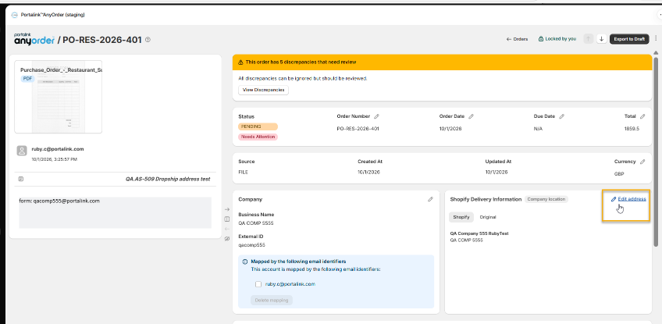
Quick route: Edit address → Load from document → review details → Save address → Save → Confirm Validation → Export to Draft.
- Load and review the delivery address
In Edit ship-to address, review Delivery address found in the document, then select Load from document. This fills the address fields from the extracted Deliver To details.
Check the country/region, recipient, street address, apartment or suite, city, state/province, postcode and phone. Correct or complete any missing details before saving. Loading an address does not replace this review.
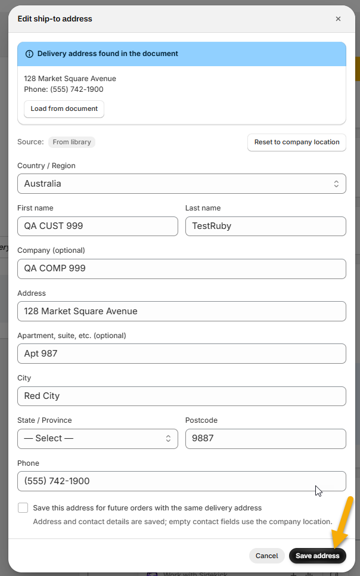
The example shows an address previously loaded from the library. Your source label and values will depend on the order.
- Save and confirm your changes
If you want to reuse the address, tick Save this address for future orders with the same delivery address before selecting Save address. Leave it unticked if you do not want to save it for reuse.
Select Save address. Back on the order, review Shopify Delivery Information, then select Save. In Validate Changes, compare the Original and Current address details and select Confirm Validation once they are correct.
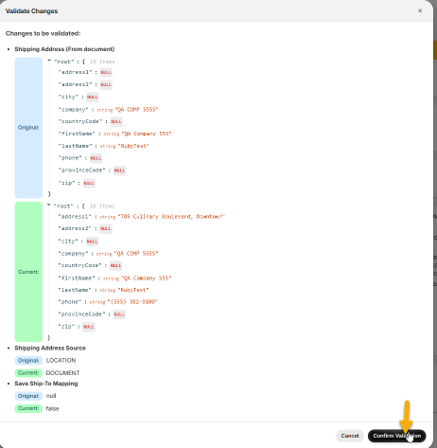
Wait for the order update confirmation before exporting. If the details are wrong, cancel the confirmation and return to Edit address to correct them.
- Reuse a saved address
Saving an address adds its address and contact details to the location’s Address Library. Empty contact fields use the company location details, as noted in the address dialog.
On a future order with the same delivery address, check for the From library label. Review the populated address against the new order document before saving or exporting.
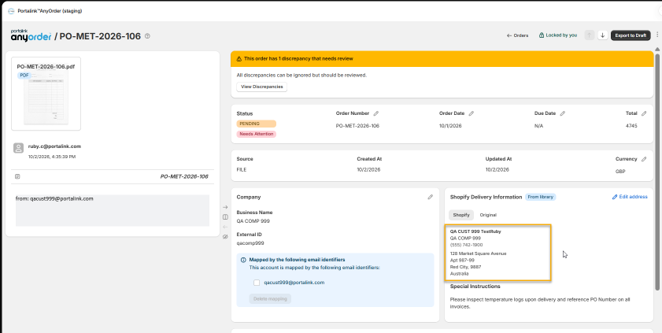
Return to the company location address
Open Edit address and select Reset to company location. Check the restored address, select Save address, then save and confirm the order changes. Use this when the order should ship to the selected company location instead of the drop ship destination.
What the source labels mean
| Label | Meaning |
| Company location | The selected location’s ship-to address. |
| From document | The delivery address loaded from the order document. |
| Edited | Delivery details have been manually changed. |
| From library | A saved delivery address has been reused. |
- Export and check the Shopify draft
Review any order discrepancies and complete the required checks. Select Export to Draft. Once export succeeds, select Open in Drafts and verify the Shipping address on the Shopify draft order.
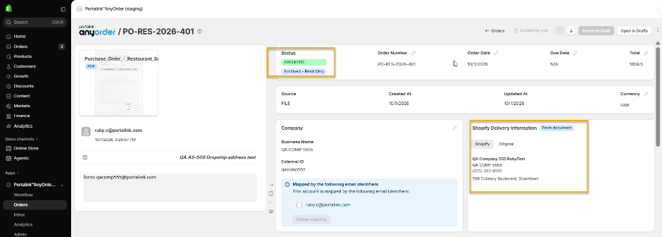
After export, the example order is Archived – Read Only. Check the destination before export, and verify it again in Shopify before progressing the draft.
Before you finish
- The correct customer company and location are selected.
- The shipping destination matches the customer’s intended delivery address.
- Address and contact details have been checked and completed.
- The reuse checkbox reflects whether you want the address stored for future orders.
- The changes have been saved and confirmed.
- The Shopify draft shows the intended shipping address.
If the expected address is missing
If document details are missing or incomplete, enter the correct delivery details in Edit address and review them before saving. For older orders without parsed address details, ask your Portalink administrator about processing a new document with the updated feature.
If a saved address is incorrect for this order, use Edit address to load the document address, amend the details, or reset to the company location as appropriate.


